
CONVIVIOPOS FOR PIZZERIAS
For every pizza, a clear order.
Ingredients, toppings and requests follow the pizza from menu to preparation. One order for table service and for collection.
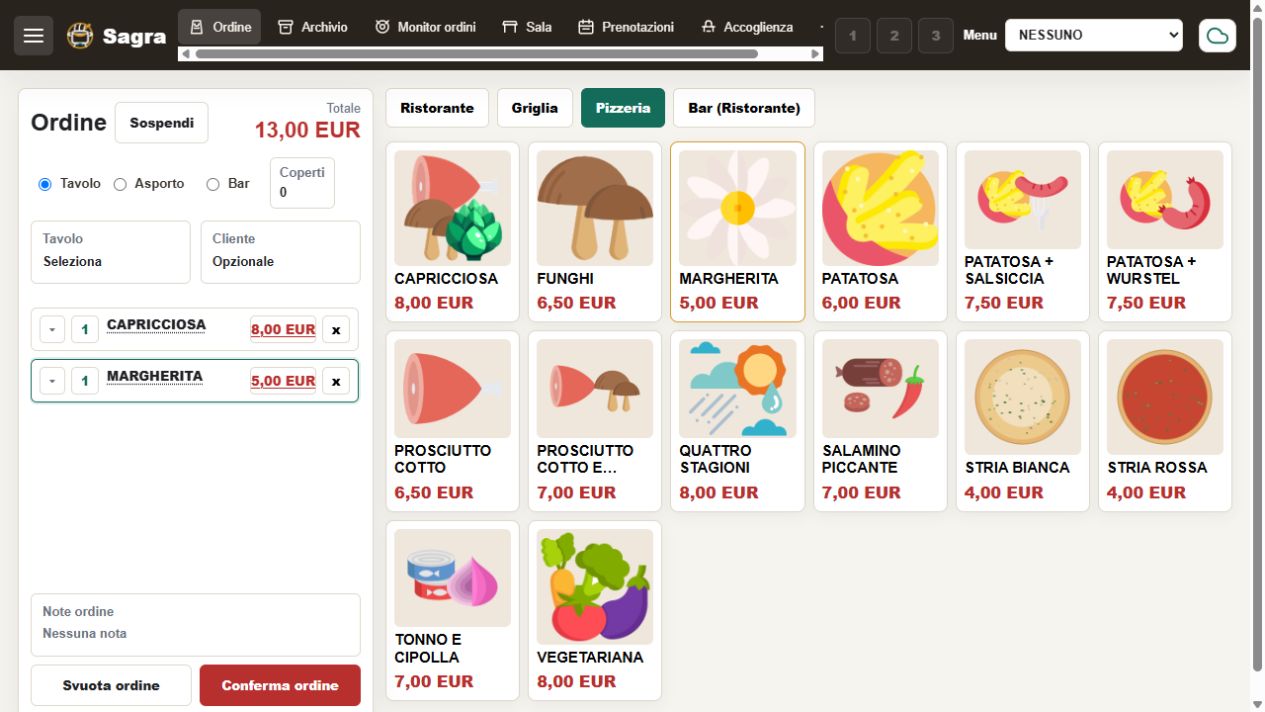
HALF-AND-HALF PIZZA
Two halves. One order line.
Use the ½+½ button to choose the first flavour and then the second. The pizza becomes one line, with both halves identifiable in the order and during preparation.
CONVIVIOPOS · SERVICE AT YOUR FINGERTIPS
Fewer steps.
More control.
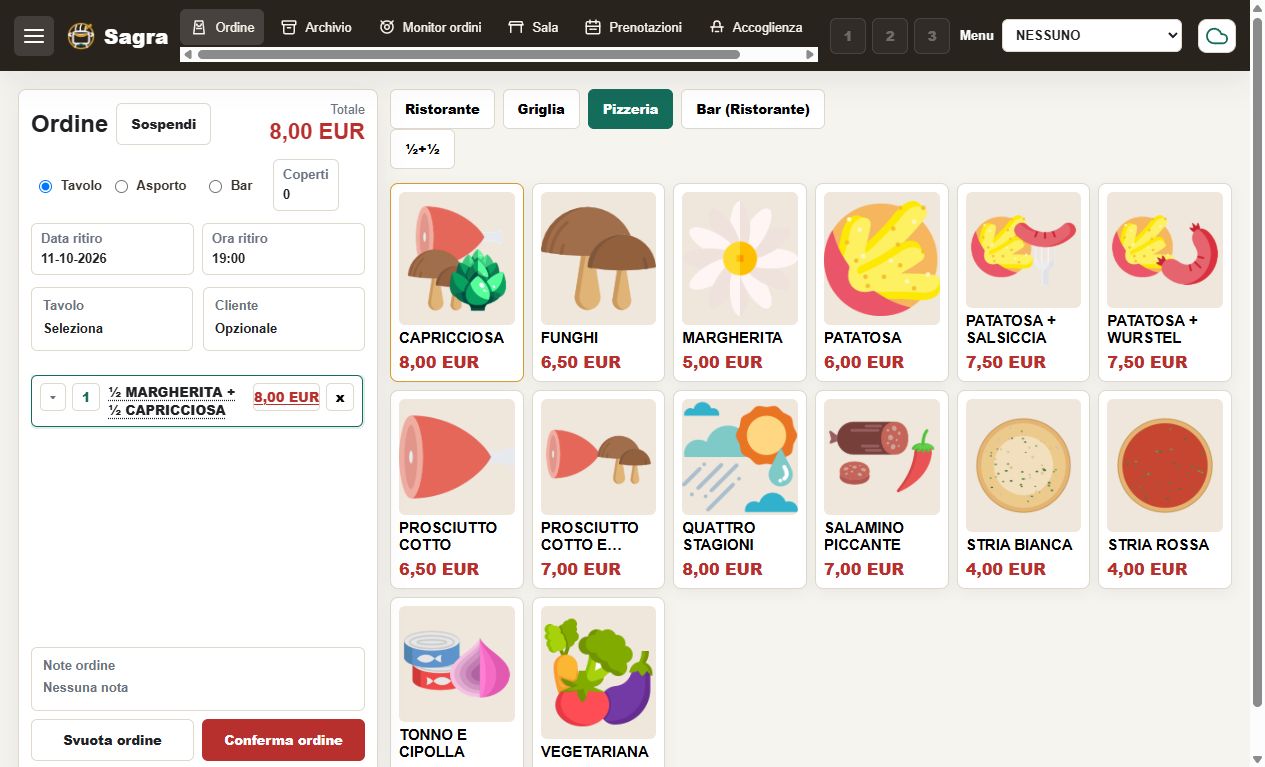
Designed to reduce interactions and limit opportunities for mistakes. The controls are where you need them: directly on the order data.
Tap the price.
To change it, work directly on the price itself.
Open the order line.
Add notes and options to the item you just added.
Tap the quantity.
Increase or reduce the portions directly from the order line.
BEFORE AND DURING SERVICE
From reservation to order.
Organise reservations, follow your guests’ arrival and offer a way to order from the table. Each moment has its own view.
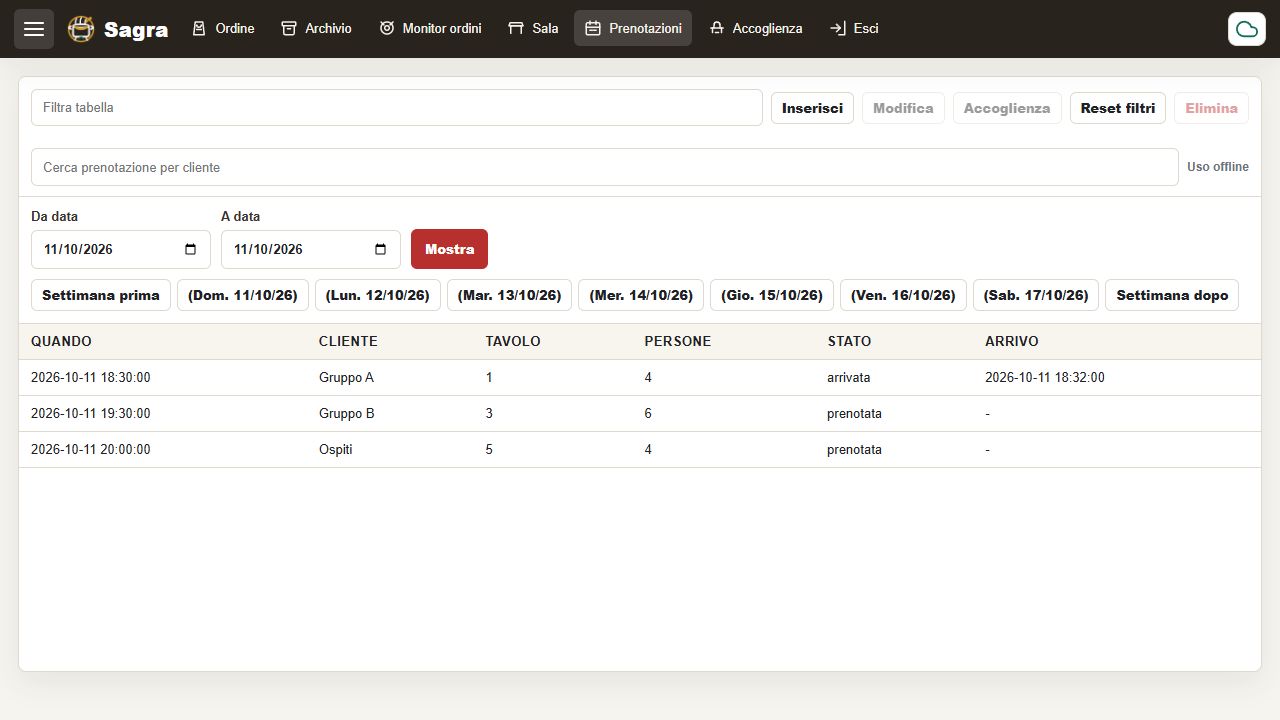
01Reservations
Reservations in one view.
Record the customer, party size, date and time. Assign a table or leave it unassigned, then find reservations for the selected period with their status and notes.
- Customer, party size, date and time
- Assigned or unassigned table
- Reservation status and notes
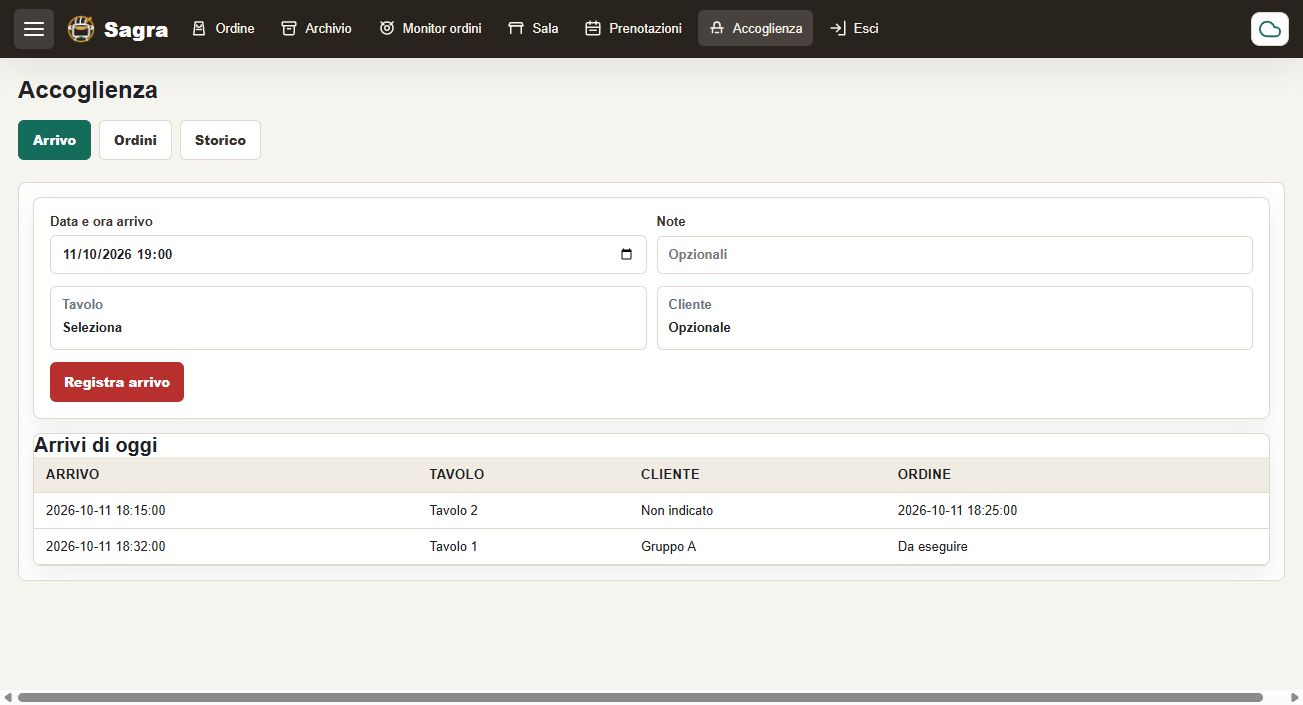
02Welcome
Know who has arrived. And who needs to order.
Record arrivals at tables and follow the list of orders still to be taken. Mark when an order has been collected and consult the arrival history.
- Arrival linked to the table
- Orders still to be taken
- Filterable arrival history
03Ordering from the table
Orders can start at the table too.
The table QR can open the menu in a guest’s browser with the table already linked. The customer chooses items and submits the order directly.
- QR for menu and ordering
- Table already linked
- Direct order submission
The guest’s device must reach the venue’s server, for example through the same Wi-Fi network.
Your service, organised.
Ingredients and variations in the menu.
Configure additions and removals, linked ingredients and their prices. Variation groups can include mutually exclusive choices.
Tables and takeaway in one system.
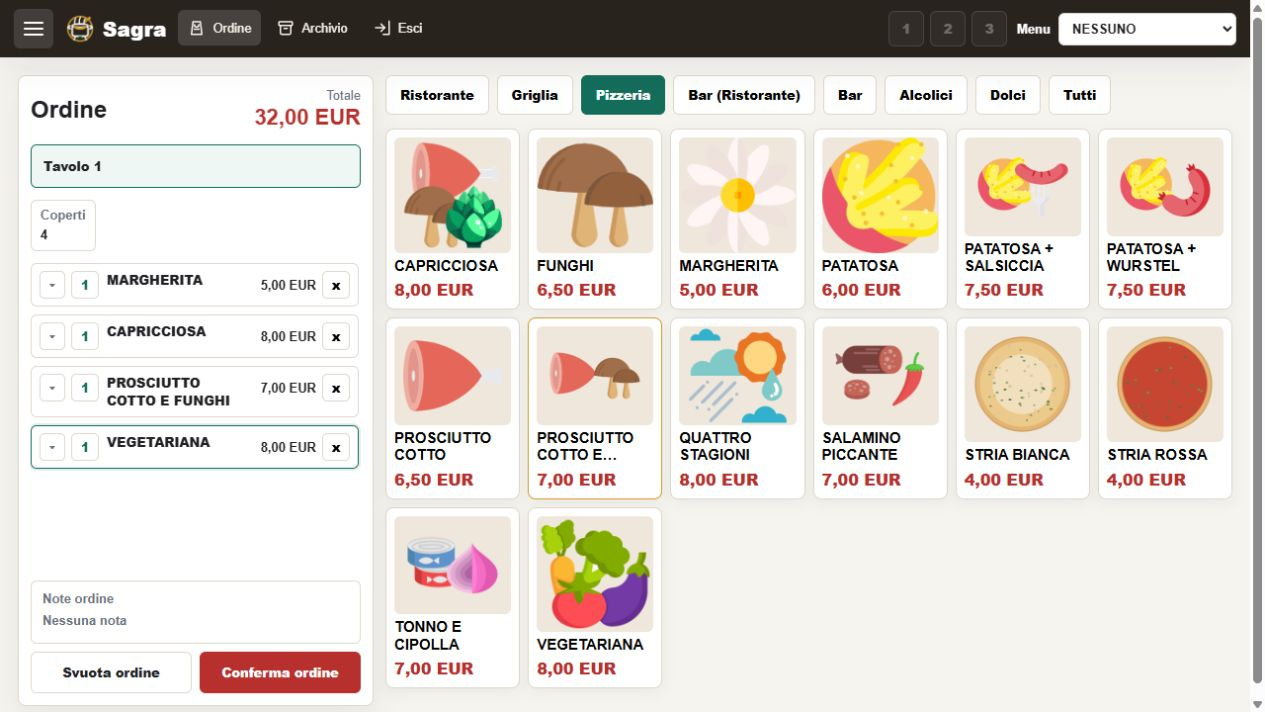
Choose the appropriate order type. Record customer and collection time for takeaway, or table and guest count for dining in.
Preparation gets the details.
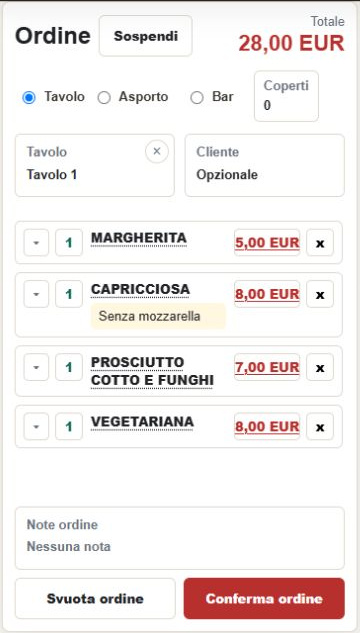
Orders sent to department printers and the monitor include the entered variations and requests. The preparation team sees the details of each pizza.
Find sales and payments.
Record payments across multiple methods and use reports to understand product sales over your chosen period.
From preparation to reports.
Four steps to bring ConvivioPOS into your work.

01
Build the menu.
Add pizzas and configure ingredients, variations and prices.
02
Choose your service.
Configure tables, takeaway, departments and printers.
03
Build the order.
Choose the pizza, add variations and requests, then save the order.
04
Follow and collect payment.
Check preparation, record payment and review the statistics.
Try it in your business.
ConvivioPOS is free to use. The Windows package includes images, sample databases and manuals.