RESTAURANTS · PIZZERIAS · FOOD FESTIVALS
Free management softwarefor food service.
ConvivioPOS brings together orders, kitchen, tables, payments and reports. From counter to dining room, organise service at your restaurant, pizzeria or food festival.
Free to use. Donations are optional.


CONVIVIOPOS · A SERVICE, CONNECTED
From table to kitchen.
Through to the bill.
One application to support the dining room, kitchen and checkout. Scroll to follow a service from start to finish.
-
The order
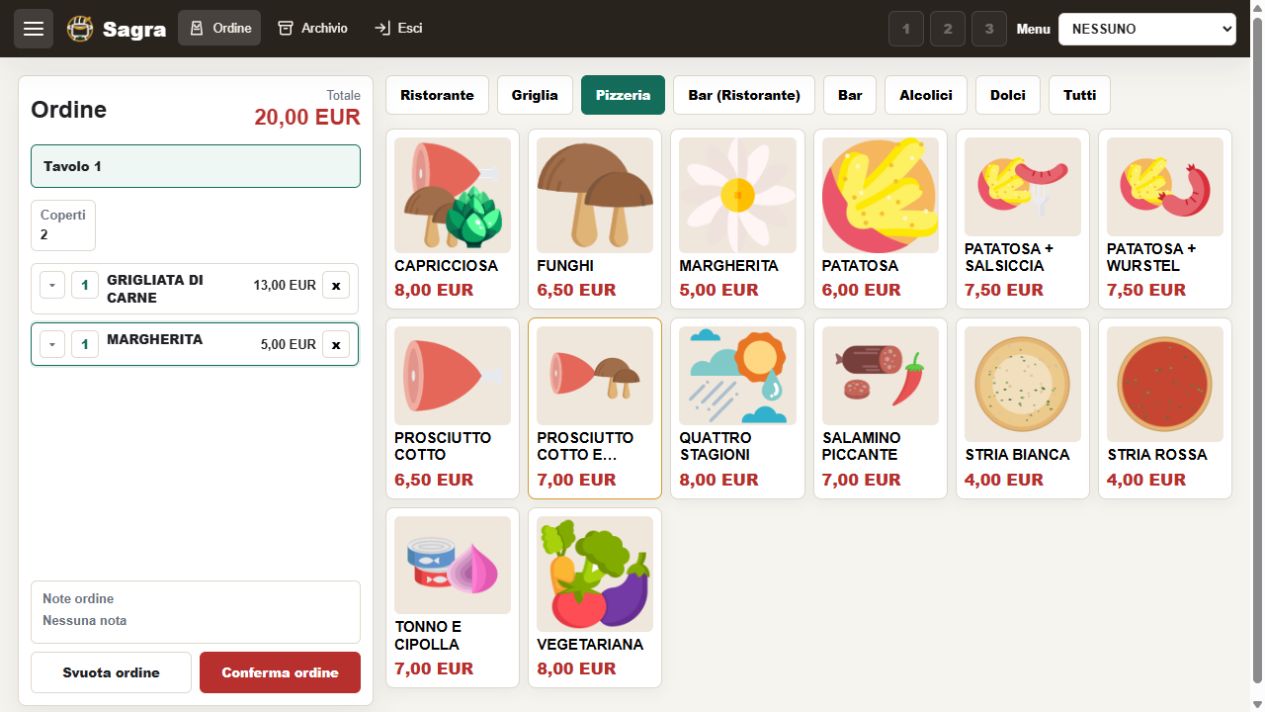
Choose dishes and take the table’s order.
-
The kitchen
Send orders to each department and follow preparation.
-
The bill
Find the orders and handle payment at the checkout.
-
The statistics
Review sales and takings to plan your next service.
CONVIVIOPOS · SERVICE AT YOUR FINGERTIPS
Fewer steps.
More control.
Designed to reduce interactions and limit opportunities for mistakes. The controls are where you need them: directly on the order data.
Tap the price.
To change it, work directly on the price itself.
Open the order line.
Add notes and options to the item you just added.
Tap the quantity.
Increase or reduce the portions directly from the order line.

CONVIVIOPOS · ORDER WALKTHROUGH
One order.
A service takes shape.
Watch an order take shape: dishes from different departments, cooking levels, variations and preparation notes, through to saving the order.
- Menu by department
- Cooking levels
- Ingredients
- Kitchen notes
48 seconds · The YouTube player loads when you press Play. Watch on YouTube ↗
DINING ROOMS AND TABLES
Your dining room, on a floor plan.
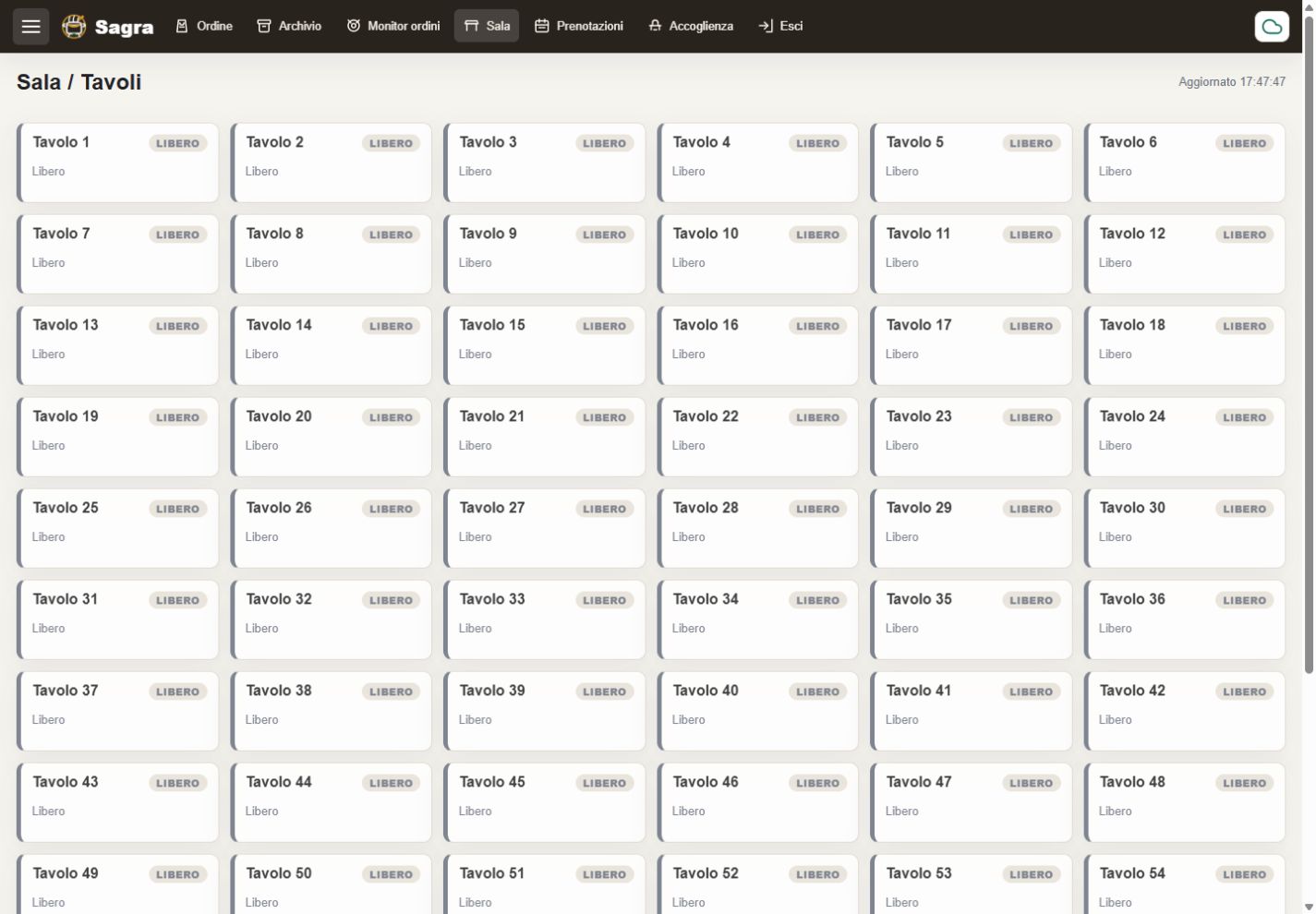
Organise your space and find the tables on the map while following the service.
-
Draw the dining room.
Walls and rectangular or round tables.
-
Adjust each table.
Position, dimensions and guest capacity.
-
Follow the service.
Table status in the operational dining room view.

BEFORE AND DURING SERVICE
From reservation to order.
Organise reservations, follow your guests’ arrival and offer a way to order from the table. Each moment has its own view.
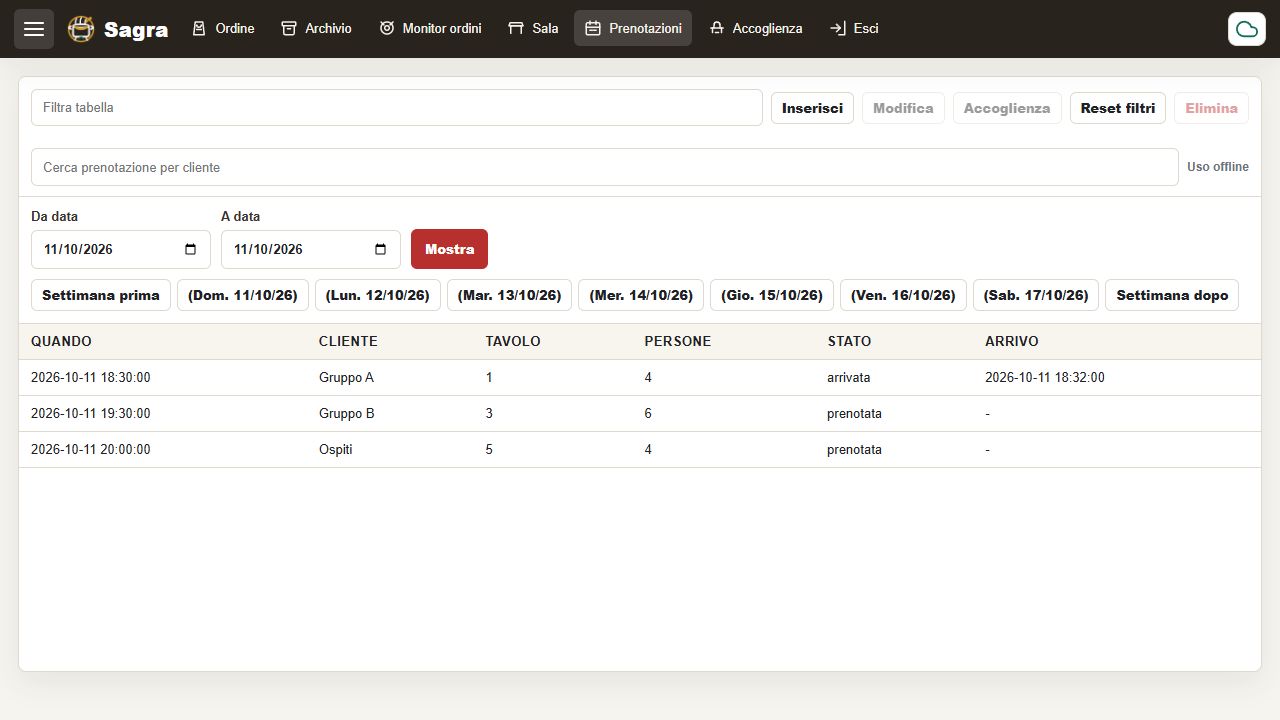
01Reservations
Reservations in one view.
Record the customer, party size, date and time. Assign a table or leave it unassigned, then find reservations for the selected period with their status and notes.
- Customer, party size, date and time
- Assigned or unassigned table
- Reservation status and notes
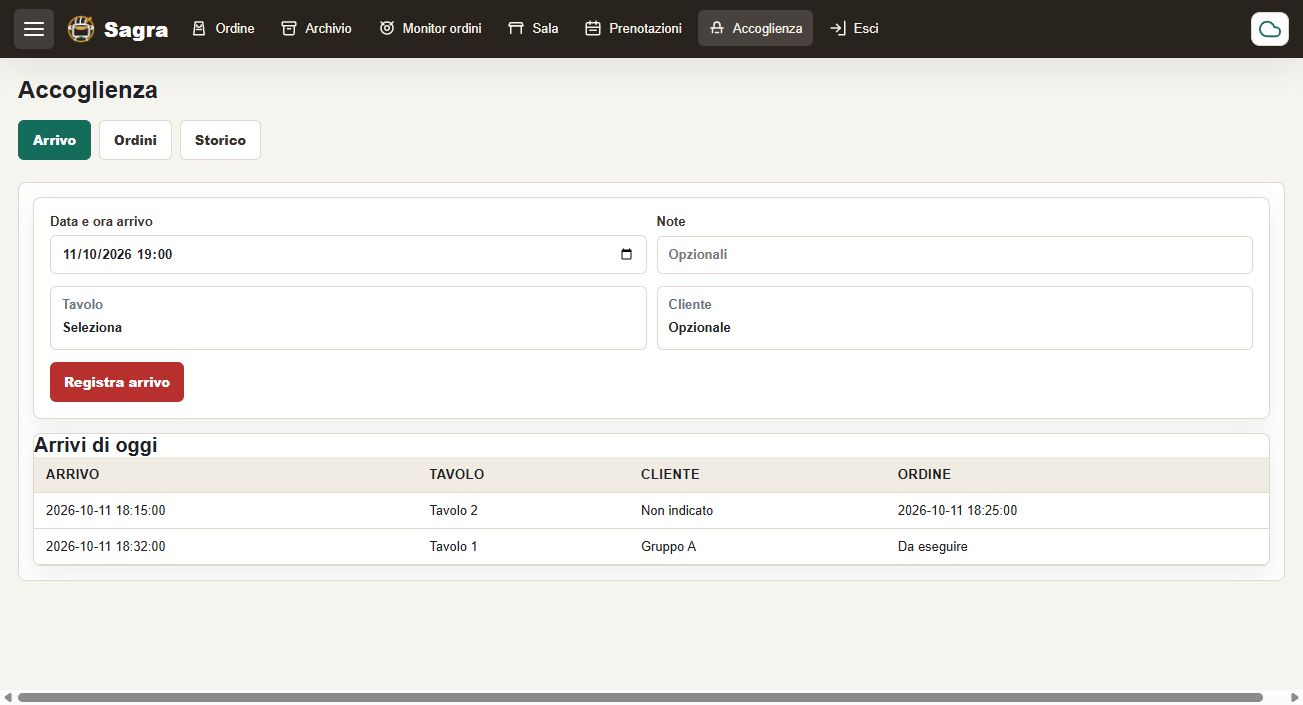
02Welcome
Know who has arrived. And who needs to order.
Record arrivals at tables and follow the list of orders still to be taken. Mark when an order has been collected and consult the arrival history.
- Arrival linked to the table
- Orders still to be taken
- Filterable arrival history
03Ordering from the table
Orders can start at the table too.
The table QR can open the menu in a guest’s browser with the table already linked. The customer chooses items and submits the order directly.
- QR for menu and ordering
- Table already linked
- Direct order submission
The guest’s device must reach the venue’s server, for example through the same Wi-Fi network.
02 · THE KITCHEN
Every detail matters in the kitchen.
Cooking levels, ingredients and notes follow the dish from table to preparation.
CONVIVIOPOS · YOUR WHOLE SERVICE
Orders, tables and kitchen.
One coordinated service.
Practical tools for taking orders, preparing food, serving tables and closing the till.
Orders that work your way.
Table service, takeaway or bar. Picture menus, variations, modifiers and allergens: clear orders for every need.
A kitchen that keeps pace.
Order monitoring and course management. Orders reach the departments and printers you configure.
A dining room in balance.
Rooms, floor plans, tables, reservations and reception. Follow the service in a dedicated view.
Every payment in its place.
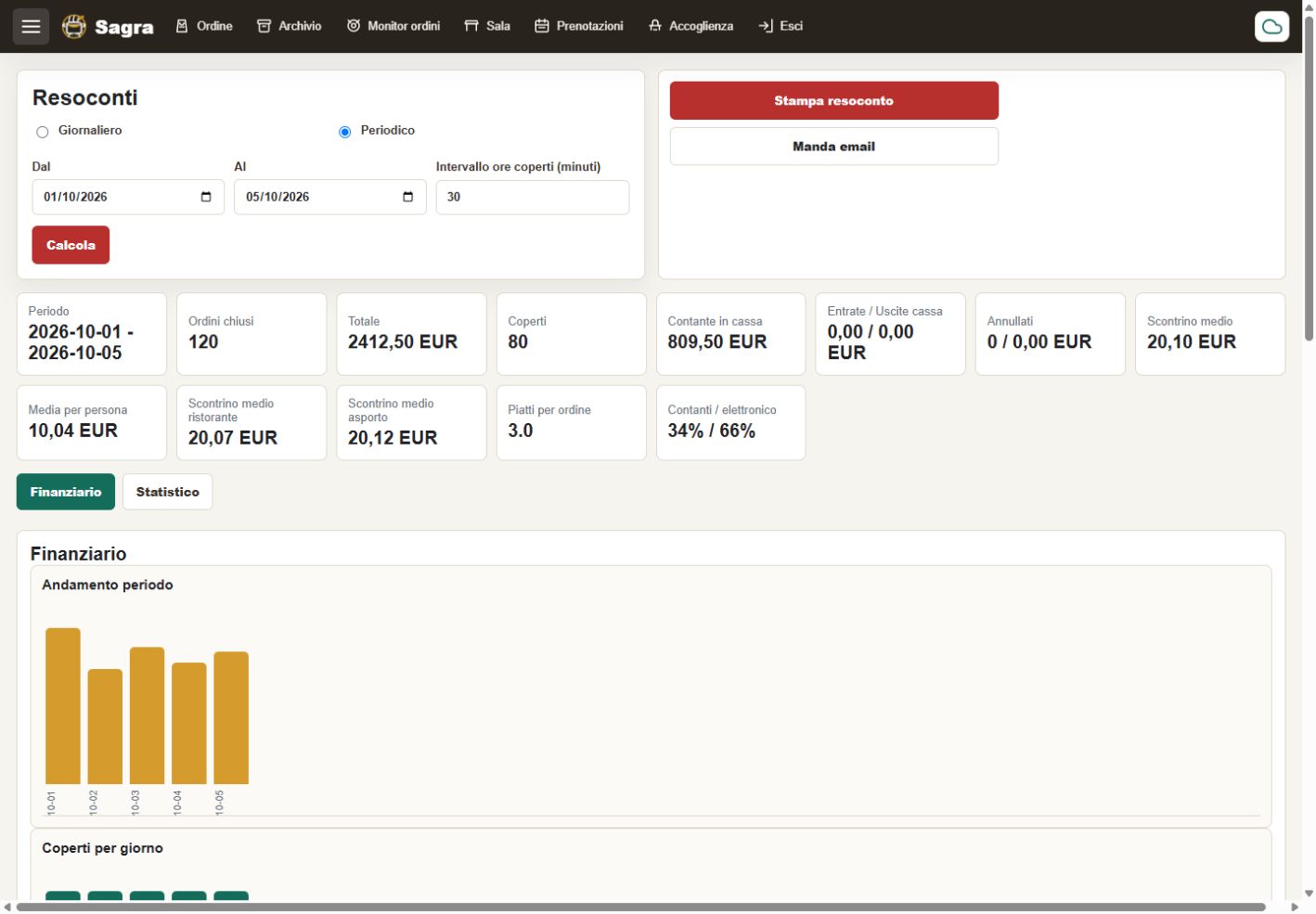
Multiple payments, cash inflows and outflows, financial and statistical reports. Find the numbers behind your service.
ConvivioPOS screens.
A visual menu, an organised dining room and clear figures: explore the tools in ConvivioPOS.

03 · THE CHECKOUT
The service reaches the checkout.
Find the order, check the bill and handle payment.
SERVICE ENDS. THE NUMBERS TELL THE STORY.
See what works.
Build on it.
A report is more than the evening’s total. It helps you understand what sells, when service gets busy and how payments are distributed.
The financial picture
Totals, payments and cash movements to understand the selected period.
Your menu in numbers
Sales by item and department: see what is doing well and where to look closer.
The rhythm of service
Charts and summaries help you recognise order trends over the selected period.
Reports by email
Use “Send email” to send the summary for your chosen day or period to your configured recipients.
Period

Takings and diners over a period: see how each day differs.
Open the full-size chartTimes
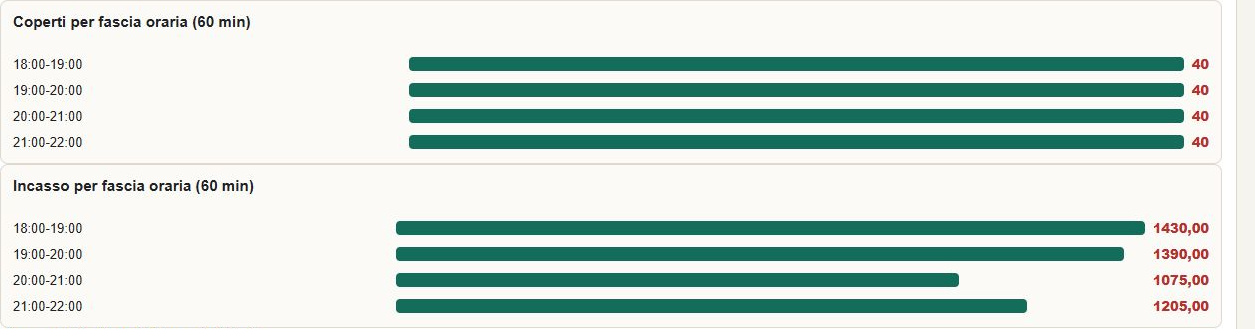
Diners and takings by time slot: identify the busiest moments of service.
Open the full-size chartAreas
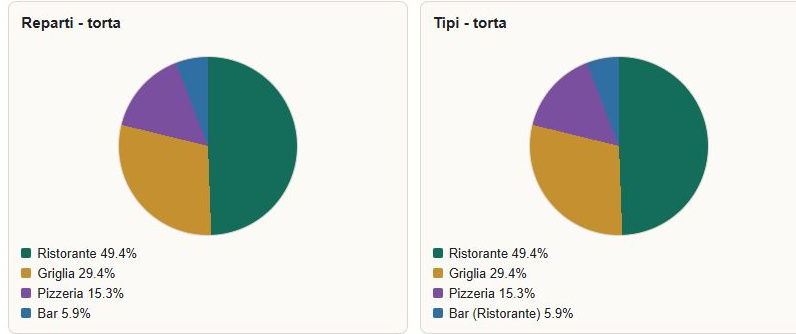
Departments and item types: see how your sales are distributed.
Open the full-size chartDishes

Takings by item: compare how each dish contributes to sales.
Open the full-size chart04 · THE STATISTICS
The next service starts with the numbers.
Diners, takings and dishes: a clear view to help plan what comes next.

YOUR PC. YOUR NETWORK. YOUR SERVICE.
Close together,
across devices.
The server runs on your Windows PC. Other devices connect through a browser on the same local network: tablets on the floor, a till at the counter, a kitchen monitor. Local service can run without internet; online features need a connection.

BEHIND THE PROJECT
Hi, I’m Luca.
Luca Mandello · Software engineer · Ficarolo
For over twenty years I have developed business software, databases and IT infrastructure. At Tausoft I worked as an analyst, IT manager and project manager for 3logiS.
Since 2024, at New Garden, I have brought AI into business processes: Python automation, business software and e-commerce integrations, company knowledge and databases. ConvivioPOS brings this experience to food service and community festivals.

READY WHEN YOU ARE
Start here.
At no cost.
One installer, everything you need. The executable, image library, sample databases and PDF manuals are included.
-
1
Install
Download the installer and follow the wizard in your language.
-
2
Start
Open ConvivioPOS, start the server from its panel and connect in your browser.
-
3
Configure
Create your activity or load a sample database. The manual guides you.
If it helps you,
help it grow.
ConvivioPOS is free to use. If you find it useful, an optional donation supports the project. The choice and amount are yours: downloads are always free.

Payments are handled directly by PayPal.
A few things to know.
Is it really free?
Yes. You can use ConvivioPOS without subscriptions or recurring fees. Donations are optional. The software remains proprietary: see the licence for the terms of use.
Do I need internet during service?
The server and devices communicate over your local network. Internet is unnecessary for local service, but online features such as email, external services and some voice functions need a connection.
Can I use printers and fiscal devices?
Windows, serial and Ethernet printers and integrations with Italian fiscal devices are available. Check compatibility with your specific model and protocol.
How do I update without losing data?
Make a backup first. Close ConvivioPOS and its server, then run the new installer in the same folder. Activity data is not overwritten; uninstalling preserves user databases and uploads.
Let’s talk.
Questions, ideas or an experience to share?
info@conviviopos.com