
CONVIVIOPOS FOR RESTAURANTS
Dining room and kitchen, working together.
Greeting guests, taking a request at the table, moving to the next course. Connect each moment of service with tools for the dining room, kitchen and till.
DINING ROOMS AND TABLES
Your dining room, on a floor plan.
Organise your space and find the tables on the map while following the service.
-
Draw the dining room.
Walls and rectangular or round tables.
-
Adjust each table.
Position, dimensions and guest capacity.
-
Follow the service.
Table status in the operational dining room view.

CONVIVIOPOS · SERVICE AT YOUR FINGERTIPS
Fewer steps.
More control.
Designed to reduce interactions and limit opportunities for mistakes. The controls are where you need them: directly on the order data.
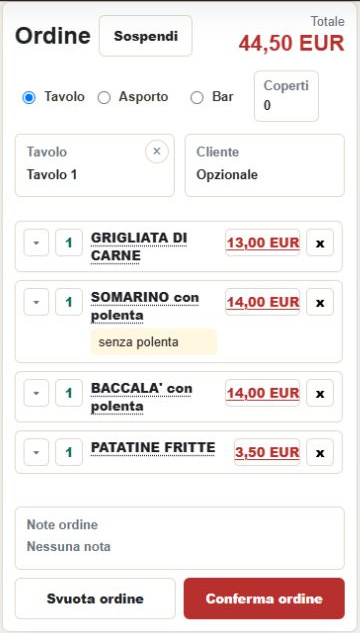
Tap the price.
To change it, work directly on the price itself.
Open the order line.
Add notes and options to the item you just added.
Tap the quantity.
Increase or reduce the portions directly from the order line.
CONVIVIOPOS IN ACTION
One order.
A service takes shape.
Watch an order take shape: dishes from different departments, cooking levels, variations and preparation notes, through to saving the order.
- Menu by department
- Cooking levels
- Ingredients
- Kitchen notes
48 seconds · The YouTube player loads when you press Play. Watch on YouTube ↗
BEFORE AND DURING SERVICE
From reservation to order.
Organise reservations, follow your guests’ arrival and offer a way to order from the table. Each moment has its own view.
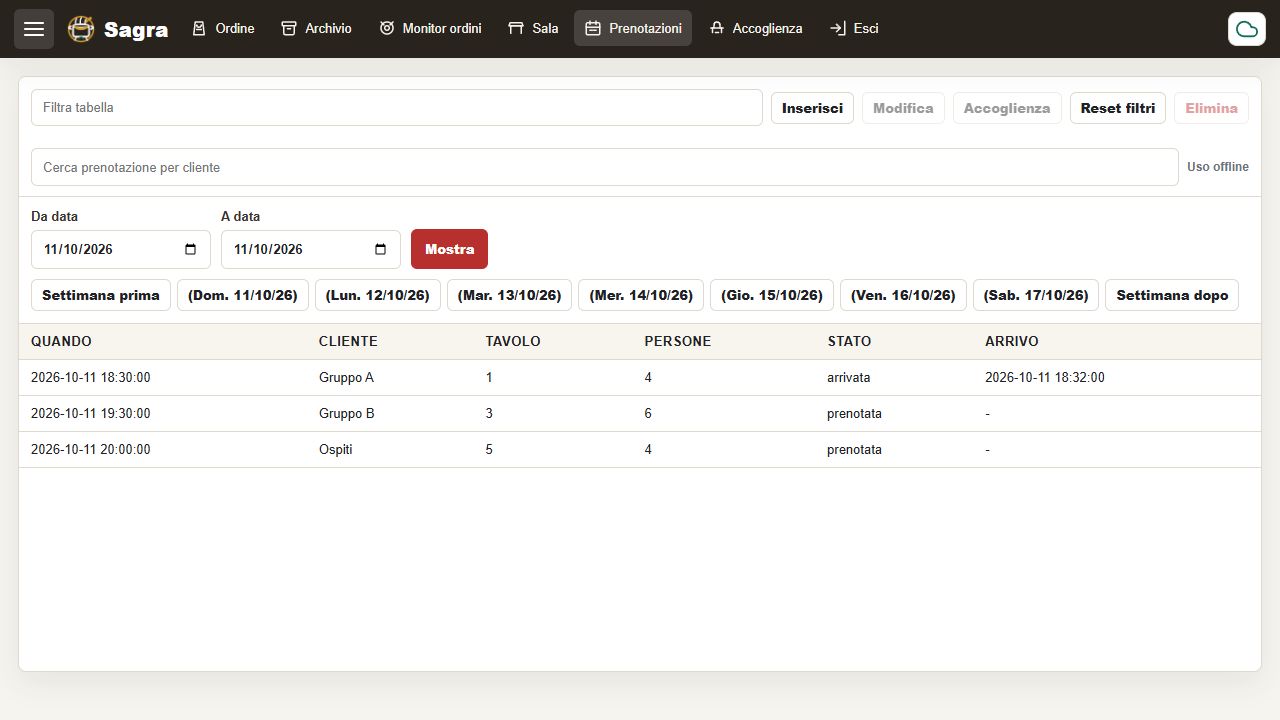
01Reservations
Reservations in one view.
Record the customer, party size, date and time. Assign a table or leave it unassigned, then find reservations for the selected period with their status and notes.
- Customer, party size, date and time
- Assigned or unassigned table
- Reservation status and notes
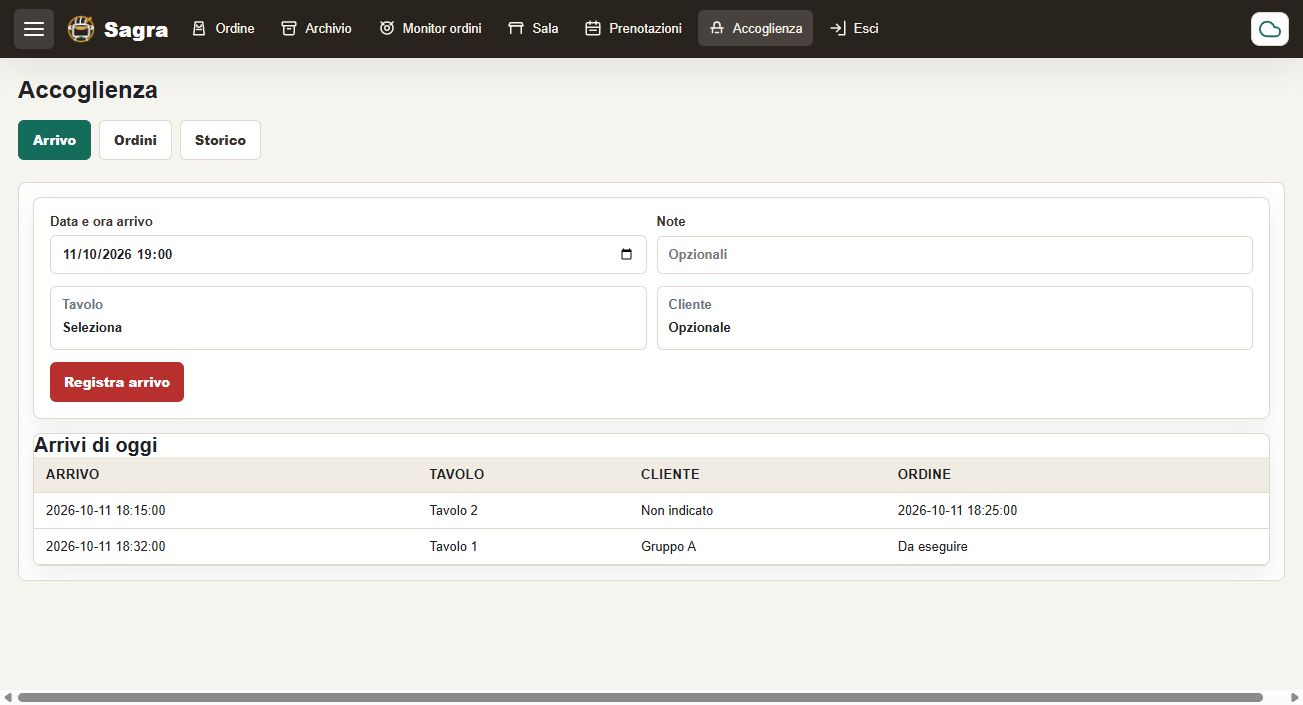
02Welcome
Know who has arrived. And who needs to order.
Record arrivals at tables and follow the list of orders still to be taken. Mark when an order has been collected and consult the arrival history.
- Arrival linked to the table
- Orders still to be taken
- Filterable arrival history
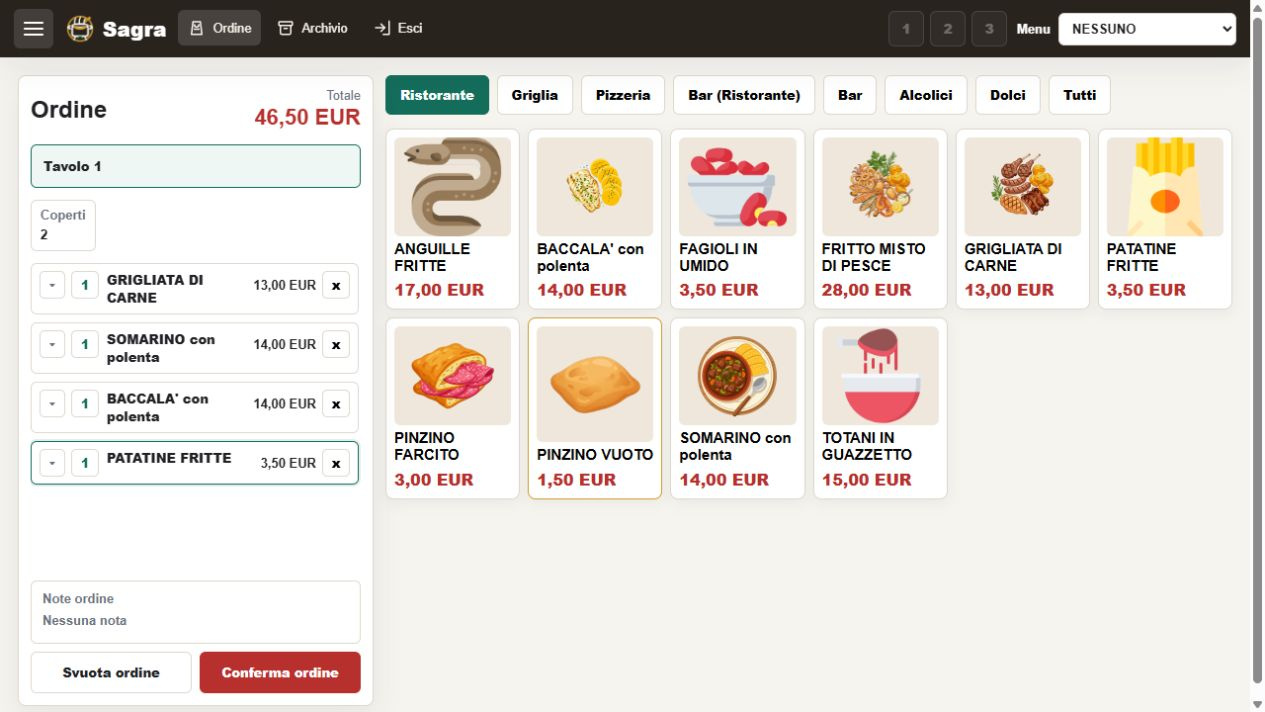
03Ordering from the table
Orders can start at the table too.
The table QR can open the menu in a guest’s browser with the table already linked. The customer chooses items and submits the order directly.
- QR for menu and ordering
- Table already linked
- Direct order submission
The guest’s device must reach the venue’s server, for example through the same Wi-Fi network.
Your service, organised.
A dedicated dining room view.
Organise rooms, floor plans and tables. Manage reservations and guest counts and find the information you need for service.
Courses follow the order.
Assign items to courses and advance the course during service. The order monitor and configured printers support the kitchen’s work.
Requests stay with the order.
Variations, modifiers and notes describe guests’ requests. Ingredients and allergens are part of your menu configuration.
Bring the bill to the till.
Manage the table’s bill and distribute payment across multiple methods. Then review payments and reports for the period.
From preparation to reports.
Four steps to bring ConvivioPOS into your work.

01
Set up the dining room.
Configure rooms, tables, covers and the menu.
02
Set up the kitchen.
Connect departments and printers and prepare the monitor view.
03
Take the order.
Choose the table, items, variations and courses.
04
Close and review.
Record payment for the bill and consult the reports.
Try it in your business.
ConvivioPOS is free to use. The Windows package includes images, sample databases and manuals.